Reading time: three minutes.
By the end of this page your long posts will have a contents list at the top, built from the headings you already wrote, and you will know how to change what it lists and how it looks. Most sites need nothing beyond step two.
The pictures on these pages outline in orange whatever Table of Contents adds to a normal WordPress screen, so you can see at a glance what is new.
Before you start
- WordPress 6.6 or newer. No other plugin is needed.
- At least one post with three or more headings in it. A post with two headings does not get a list, on purpose.
If you are moving from another contents plugin, read moving from LuckyWP or moving from Easy Table of Contents first. Those pages exist so that the links people have already shared keep working.
1. Install the plugin
In your WordPress admin go to Plugins, then Add New, and search for “Essence Table of Contents”. Install it and activate it.
Nothing else is needed. There is no setup wizard, no welcome screen and no email to give us.
2. Look at one of your long posts
Open a post with three or more headings and look at it on the site. The list is already there, above the first heading.
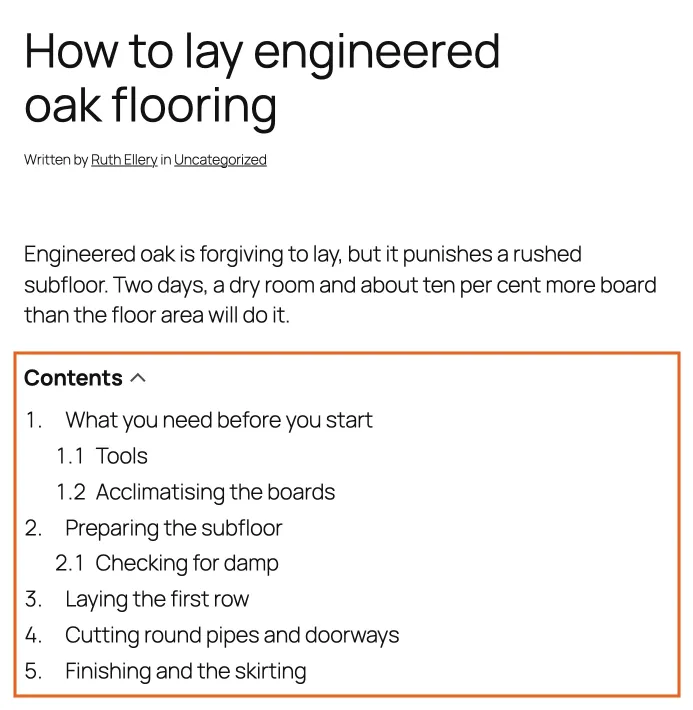
A post with the contents list above the first heading, outlined in orange
Click one of the entries. The page slides down to that heading. Your reader can also copy that link out of the address bar and send it to somebody: every heading now has its own address.
If you see no list, the post probably has fewer than three headings, or its headings are all h4 and lower. Step 3 covers both.
3. Choose what it lists
Go to Settings, then Table of Contents. Everything is on one page, in four groups.
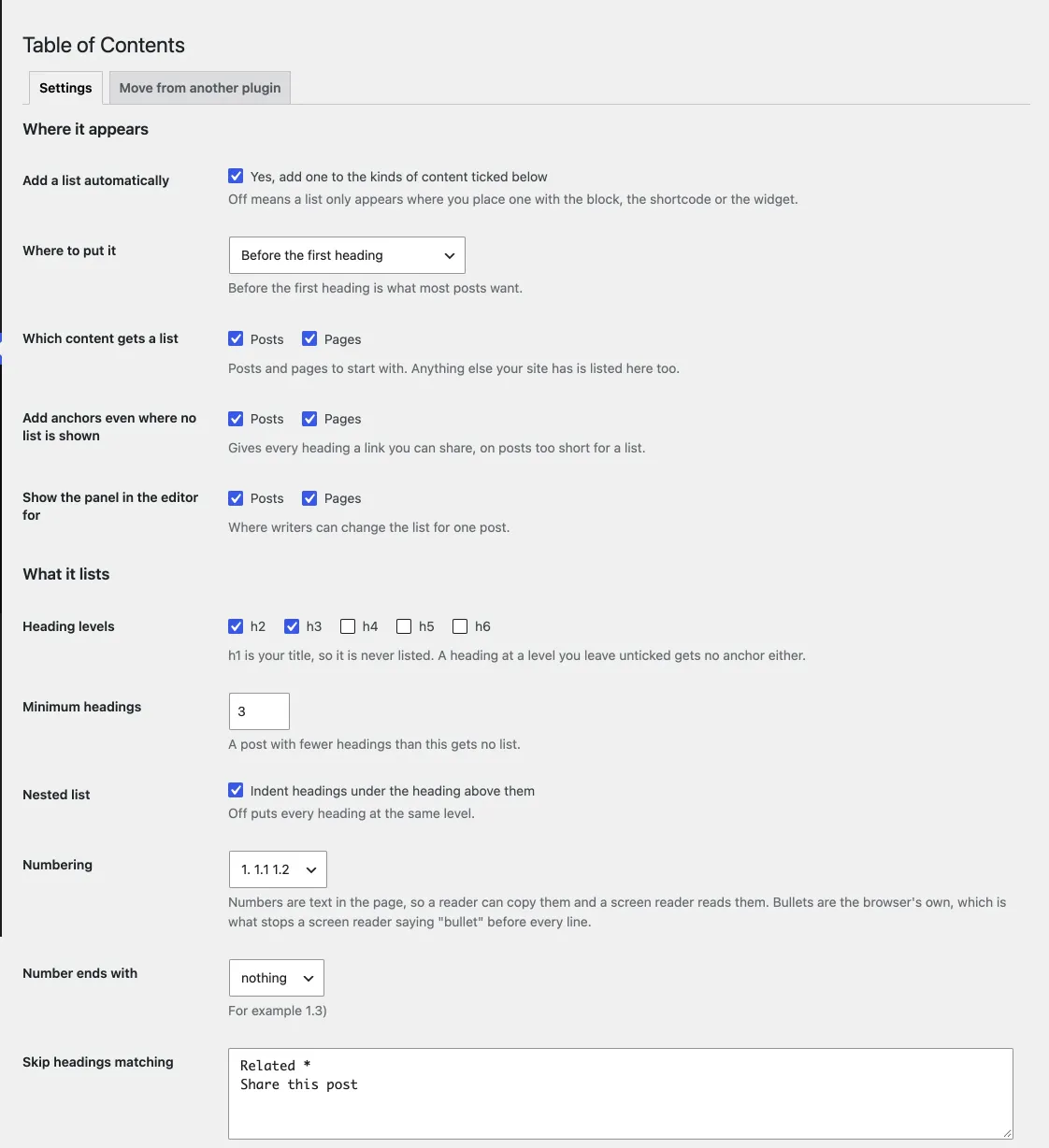
The settings page: Where it appears, then What it lists, each field with a line of explanation under it
The two settings worth looking at on day one are both in What it lists:
- Heading levels. h2 and h3 to start with. Tick h4 if your posts go deeper and you want those listed too. Your post title is an h1, so h1 is never listed.
- Minimum headings. Three. A post with fewer gets no list, because a list of two things is noise rather than help.
Every other setting has a sentence under it saying what it is for. You do not need this guide open to understand the page.
4. Choose how it looks
The How it looks and behaves group is where the list is made to suit your theme. Four settings cover almost everything:
- Title. “Contents” to start with. Put your own words in, or empty it for no title at all.
- Collapsible. On. The reader can fold the list away by pressing the title. There is no JavaScript behind this; it is a part of HTML that every browser has had for years.
- Folded away to start with. Off, and we suggest leaving it off. Most readers never open a list that arrives closed.
- Box. None, which means the list takes its colours and its type from your theme and so matches every page it appears on. Light, Dark and My own colours are there for themes that leave it looking bare.
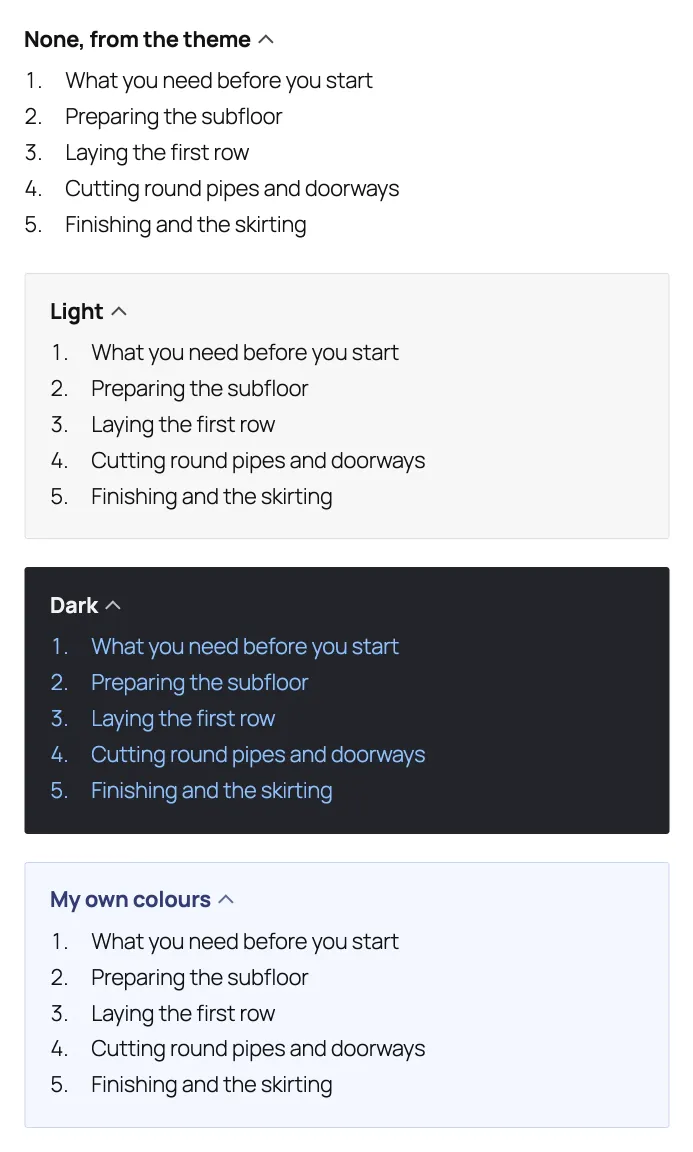
The list with each of the four box styles
5. Change one post, or place a list by hand
Most sites never need this, but two things are worth knowing.
In the editor, every post has a Table of Contents panel. It can switch the list off for that post, give it its own title, put it somewhere else, or list different levels. Anything left alone follows the site settings.
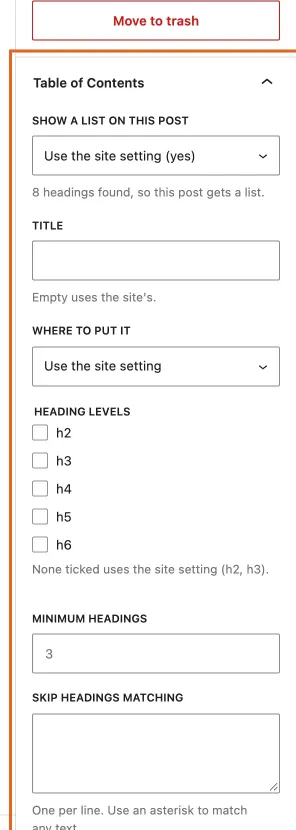
The editor panel for one post, outlined
And if you would rather place the list yourself than have it placed for you, turn Add a list automatically off and use whichever of these suits you:
- the Table of contents block, in the block inserter;
- the shortcode
[essence_toc], which works in any page builder that can hold a shortcode; - the Table of Contents widget, for themes with a classic sidebar.