How it works
You type a price grid: widths across the top, drops down the side, one price in each cell. Each band is an “up to” size. A customer’s size rounds up to the next band on each side, so a 112 cm by 137 cm blind is priced as the 120 by 150 cell. Sizes smaller than the first band cost the same as the first band. Sizes bigger than the last band cannot be ordered, and the customer sees your message instead of a price.
The lowest cell becomes the product’s price, so shop lists say “From £24.00”.
A product can take one size instead of two, for a pole, worktop or shelf cut to length. The grid is then a single row of prices: up to 120 cm, up to 180 cm and so on. See One size below.
Setting up a product
On the Sold by tab choose Size, made to measure. The fields change:
| Field | What it does |
|---|---|
| Customer enters | Two sizes, such as width and drop, or one, such as the length of a pole. |
| Call the first size / Call the second size | The words your customers use. Width and Drop for blinds and curtains, Width and Height for glass, Length and Width for rugs. |
| Grid is in | The unit your grid is typed in: mm, cm, m, inches or feet. Customers can still type in cm, mm or inches; the plugin converts. |
| Call one a | Optional. “blind” makes the summary say “2 blinds” and the button “Add 2 blinds to cart”. Leave it blank for “2 items”. Fill in Plural when adding an s is wrong. |
| When a size is too big | Shown after “The largest width we make is 210 cm.” Say what to do instead: “Call us on 0121 000 0000 for a quote.” Leave it blank for “Please contact us.” |
Then the grid.
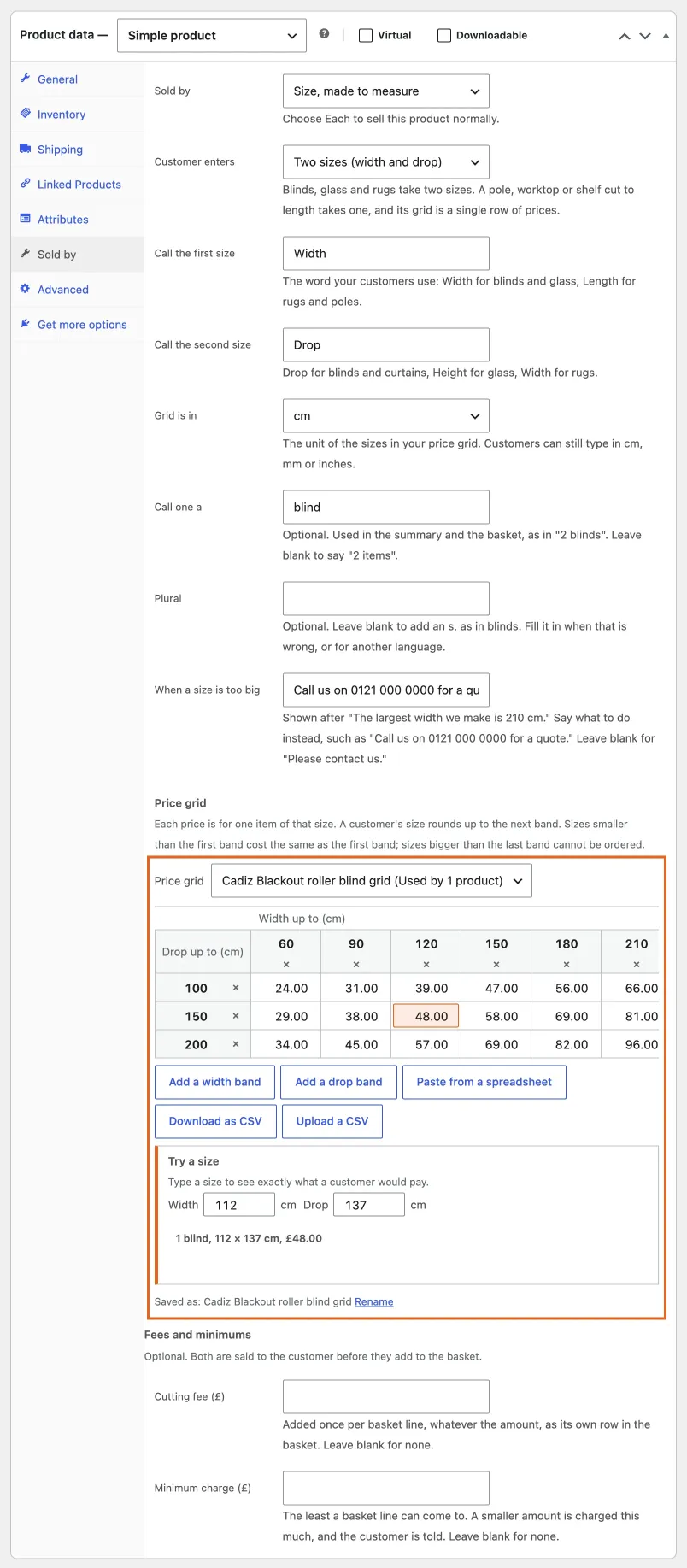
The price grid on the Sold by tab, with Try a size.
Typing the grid
- Add a width band and Add a drop band add a column or a row. Bands are kept in order from small to large; if you type them out of order they are sorted, and the cells move with them.
- Type the prices straight into the cells. Arrow keys and Enter move between cells the way a spreadsheet does.
- Paste from a spreadsheet: copy your price list from Excel or Google Sheets, with the widths along the top and the drops down the side, and paste it in. Upload a CSV does the same from a file; Download as CSV gives you the grid back to edit elsewhere.
- Show me an example fills an empty grid with a small blinds price list to start from.
The editor points out what would go wrong before a customer meets it: a blank cell is marked “This size has no price yet”, and a bigger size that is cheaper than a smaller one gets a warning, because that typo is the one that undercharges.
Try a size
Under the grid, type a size and see exactly what a customer would see: “1 blind, 112 × 137 cm, £48.00”, with the matching cell lit. It uses the same maths as the shop page and the server, so what it says is what they pay.
One size: poles, worktops, shelves
Choose One size (a length) under Customer enters, and name it in your customers’ word, usually Length. The grid becomes a single row: the lengths across the top and one price under each, with only Add a length band to press. Pasting works the same way, two rows from your spreadsheet, the sizes on top and the prices underneath. Try a size takes one number.
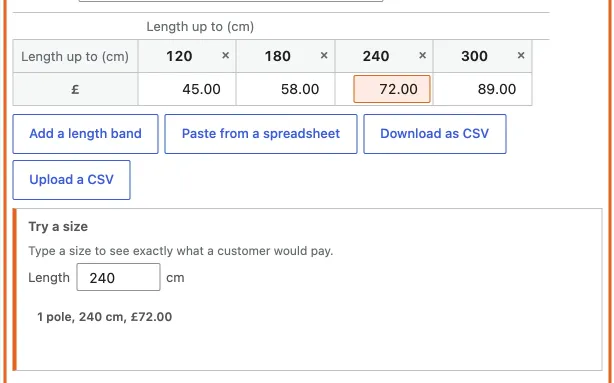
A one-size grid is a single row of prices.
The customer sees one field with “Up to 300 cm” under it, and the summary reads “1 pole, 240 cm, £72.00”. The basket and the order say “Size: 240 cm”.
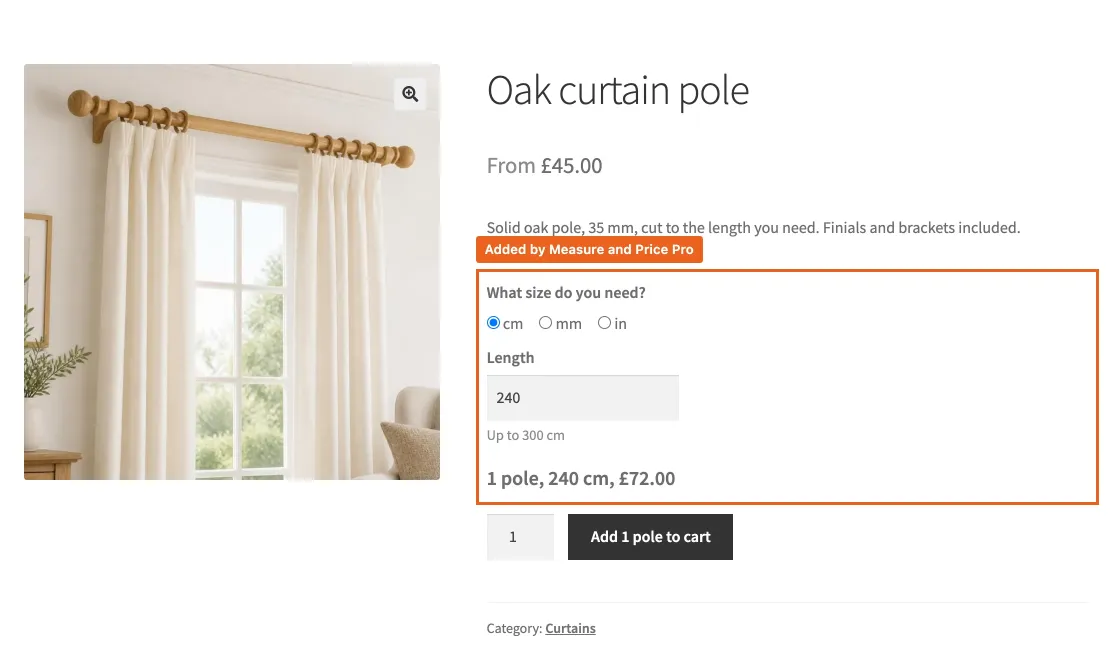
One size: a pole cut to length, one field, one limit, and the price as they type.
A grid keeps its shape. When a product picks a grid, it is offered only grids that take the same number of sizes, and the settings page says which is which. If you switch a product from two sizes to one, or back, while it uses a shared grid, the shared grid stays as it is for the other products, and this product carries on with a grid of its own, started from those prices.
What the customer sees
Two fields, in the words you chose, with “Up to 210 cm” printed under each before they type. A unit switch for cm, mm and inches; inches accept fractions, so 36½ and 36 1/2 both work. The price appears as soon as both fields are filled and updates as they type. Sizes under your smallest band say “Priced as our smallest size.” Sizes over your largest band show your message and the button stays off.
The quantity box stays: a size describes one item, and a customer may want three.
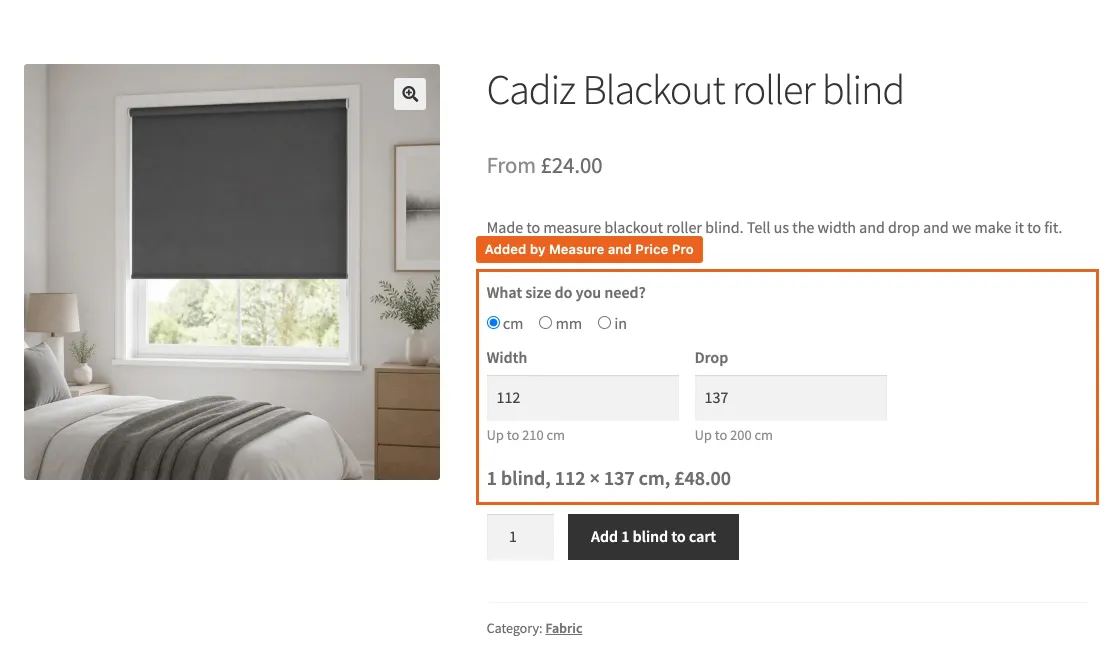
A made-to-measure product page: two sizes, the limits under them, and the price as they type.
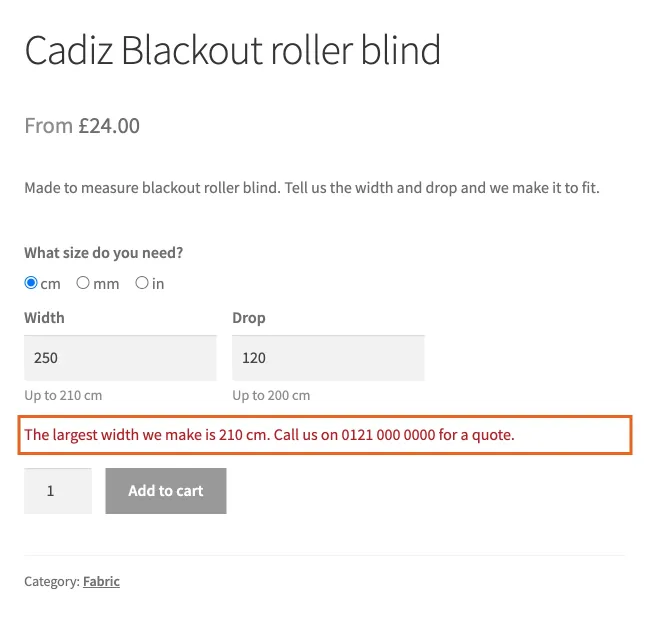
Over the largest band: your message, not a wrong price.
In the basket and on the order
The size travels with the item: “Size: 112 × 137 cm” under the product name in the basket, at checkout, on the order and in the emails. The price is worked out again on the server when the item is added and again at checkout, from the grid as it is then, so nothing on the page can be tampered with.
Variable products
A made-to-measure product can have variations, for example plain and blackout fabric. Each variation can use its own grid; see variations and categories. The product page shows the product’s grid until a variation is chosen, then the variation’s.