Variations
Under each variation’s own fields there is one line:
Same as the product: sold in steps of 0.1 m, at least 1 m. Change
Click Change and the fields the variation may override appear: steps, the step word and its plural, minimum, maximum, weight per unit, and the price list. For a made-to-measure product, the price grid. Blank fields keep the product’s setting, so you only fill in what differs. Use the product’s settings for everything takes the variation back.
What a variation cannot change is what the product is sold by and its units; those stay with the product, so the customer’s field never changes shape when they pick a variation.
After saving, the line says what the variation does: “This variation: sold in steps of 0.5 m, at least 2 m, with the price list “Heavy canvas price list”.”
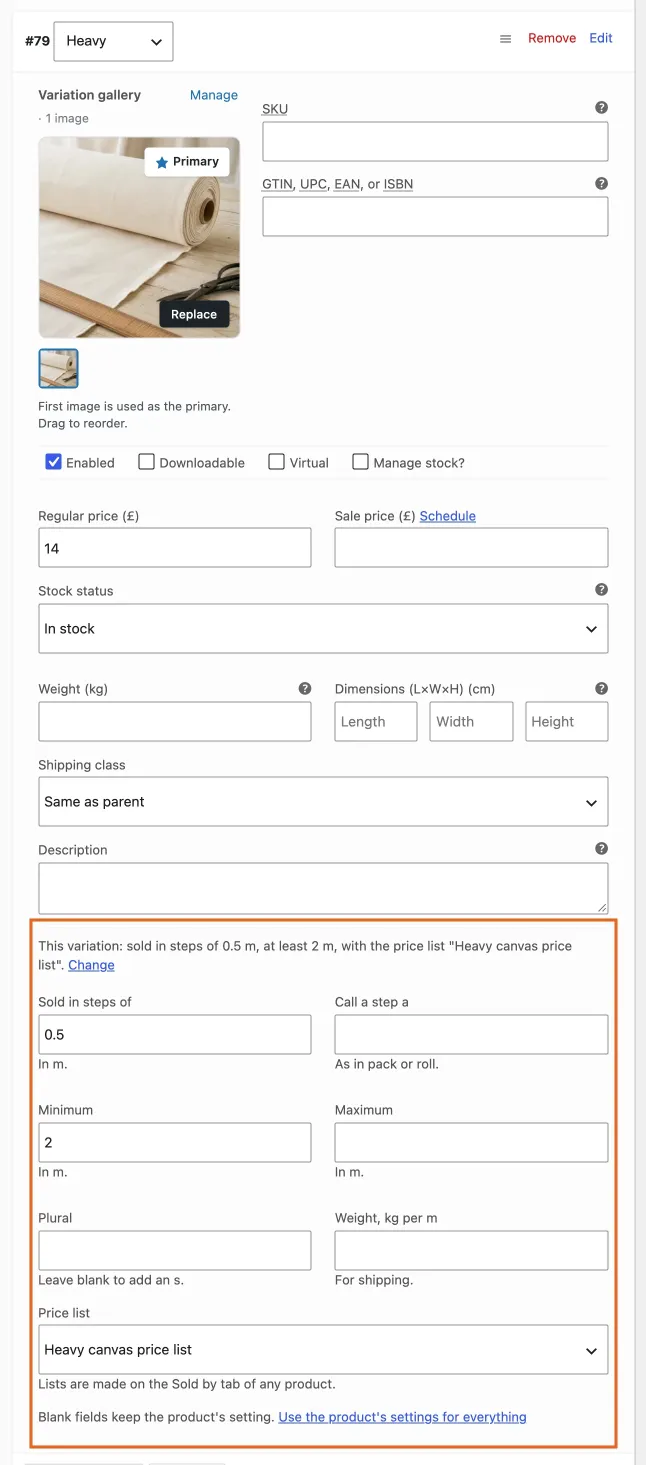
One line under each variation, and Change opens only the fields that may differ.
On the product page, the product’s settings show until a variation is chosen. Then the variation’s steps, limits, wording, list or grid take over, and go back when the choice is cleared.
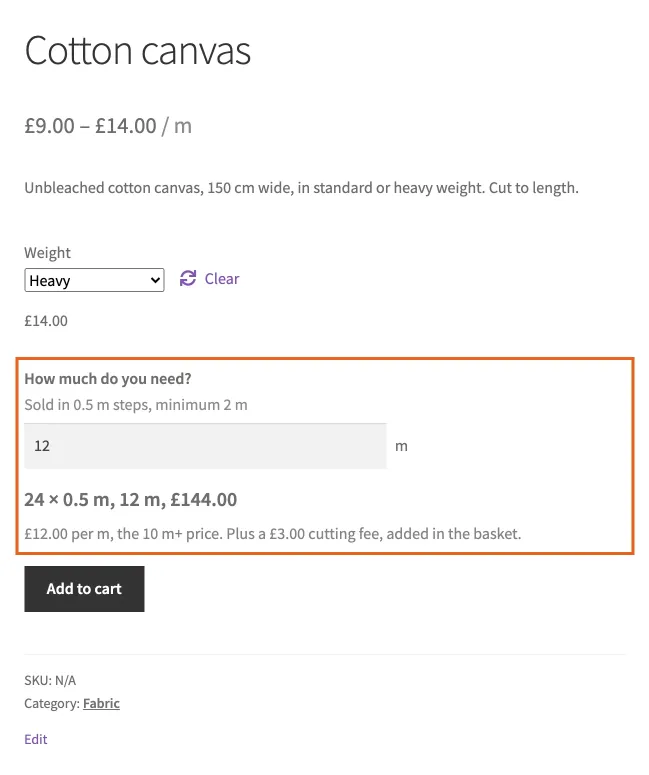
The chosen variation brings its own steps, minimum and price list.
A made-to-measure variation takes its price from the lowest cell of the grid it uses, so the product shows one From price, the lowest of its variations.
Categories
A product category can carry Sold by settings, edited on the category screen with the very same fields as the product tab, grid and list editors included. Products in the category that have no settings of their own follow them.
On such a product’s Sold by tab, the line at the top says:
Same as the Flooring category: sold by area in m², at least 2 m². Change for this product
The fields show the category’s values, greyed out. Change for this product frees them; whatever you save is the product’s own from then on, and the line changes to “This product’s own settings.” with Use the Flooring category’s settings instead, which drops the product’s copy on the next update so it follows the category again.
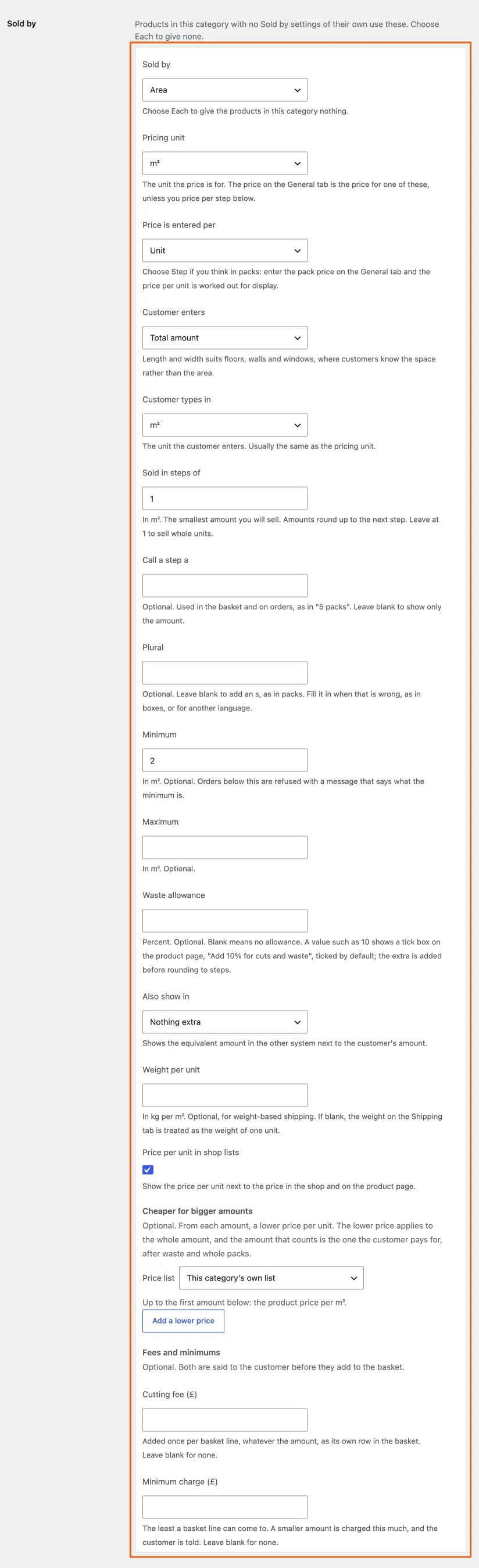
A category carries the same fields as the product tab.
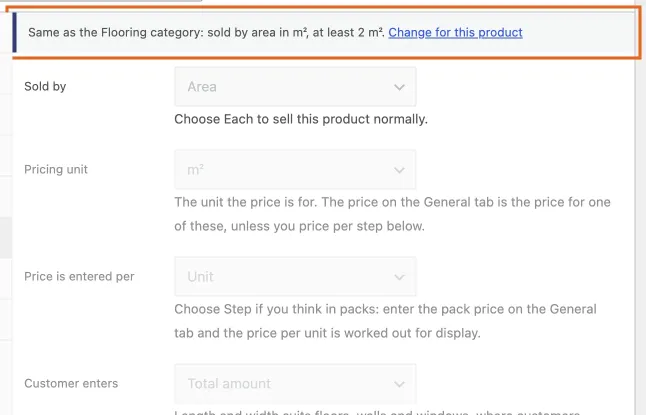
A product that follows its category says so in one line.
A product that has been set to Each on purpose keeps that; it does not follow a category until you tell it to.
When you change a category’s settings, every product following it changes too, straight away. Products with settings of their own are left alone.
Which wins
From the outside in: a variation’s own value, then the product’s, then the category’s. Each level shows which one applies, so there is nothing to work out.